The DDx course creation guide was developed to walk instructors step-by-step through setting up their course within the platform. Its purpose is to streamline the process of adding cases, organizing assignments, and aligning DDx activities with course objectives. By following this guide, instructors can save time, ensure consistency across courses, and create a clear, structured learning experience for students.
Follow these steps to get started with DDx:
Course Creation
1. Log in to DDx using your username and password.
2. Navigate to the “My Courses” tab in the upper left-hand corner.
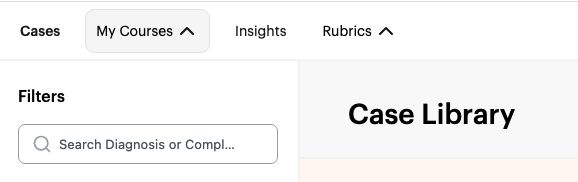
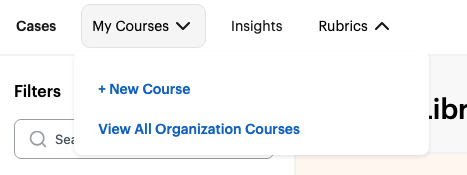
3. Select “+ New Course” from the drop-down menu.
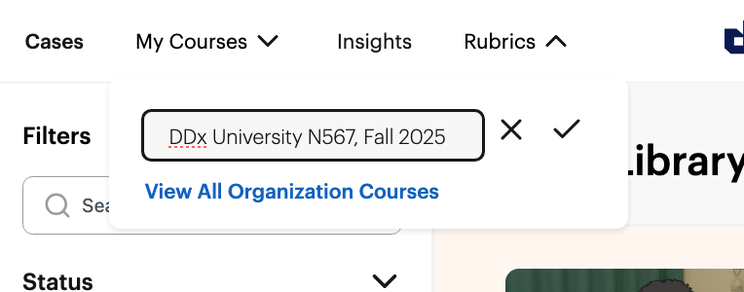
4. Title your course (Official course title/number AND semester/year is recommended) → Click on the check mark to save your course name.
5. You have successfully created your course! Once you are on your course page, click "explore cases" to return to the case library.
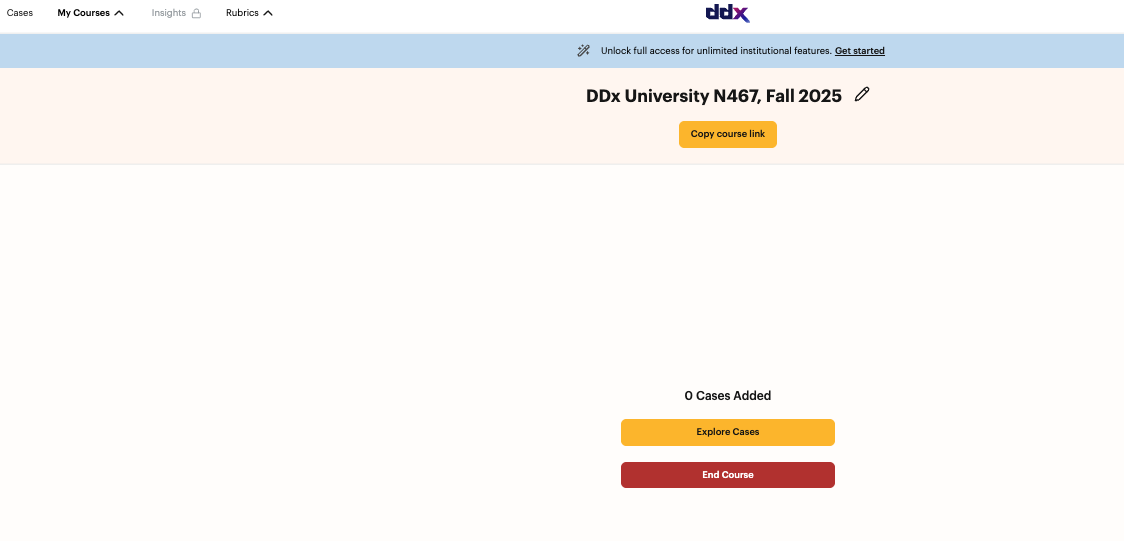
Now, let’s choose your cases to assign. You can do this one by one or you can select multiple cases at a time.
Individual Case Assignment
(Recommended if you would like to have multiple cases open and close on different dates, open with corresponding modules/lectures, etc) - Select the case you would like to assign
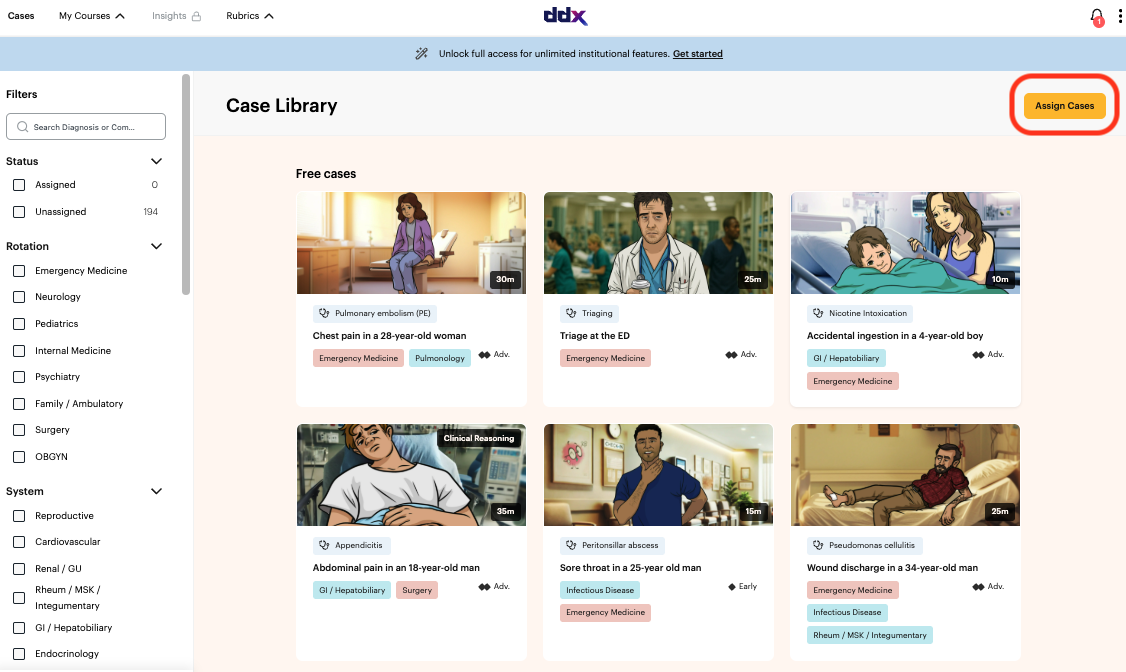
1. Click “Assign Cases” in the upper right corner.
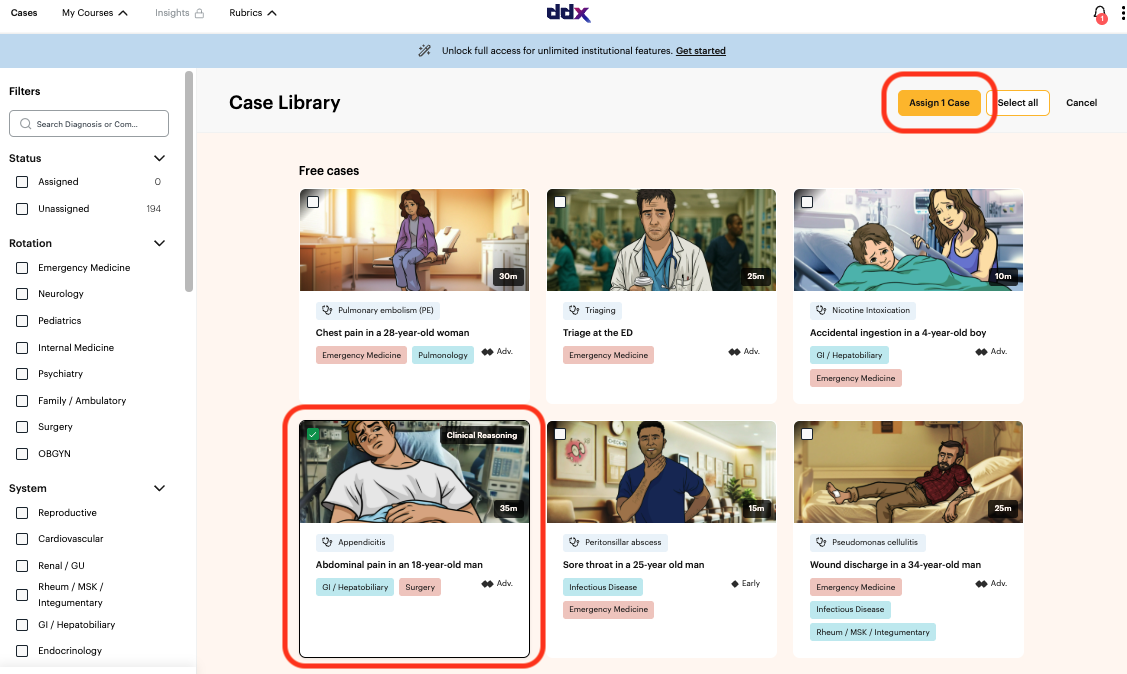
2. Select which case you want to assign and click "assign case" in the top right corner
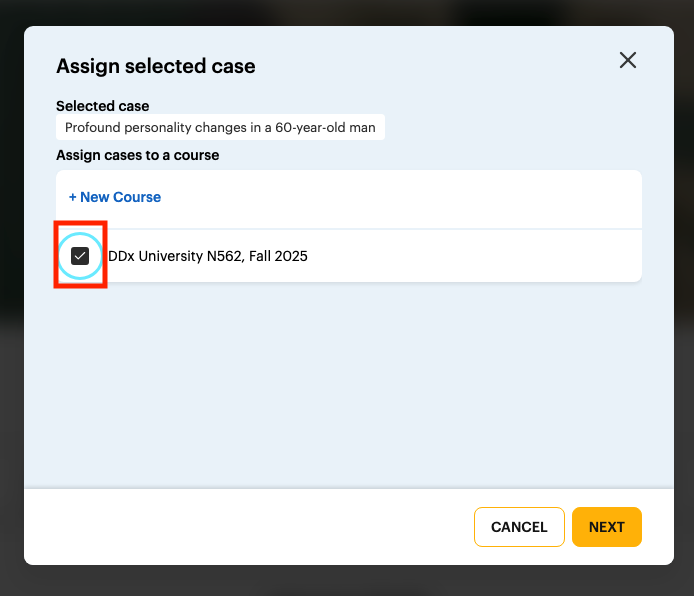
3. Select which course you would like to assign the case to.
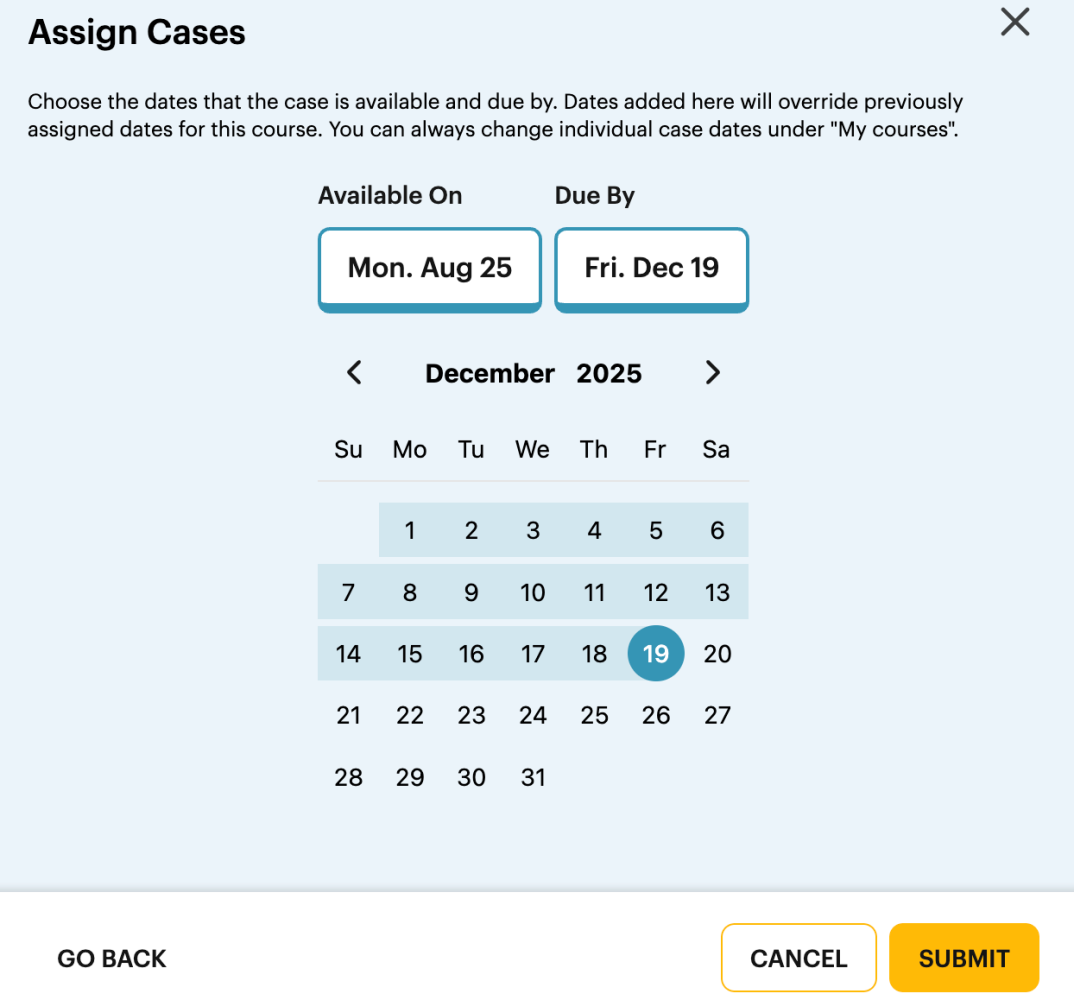
4. Select the open/close dates for the case assignment and click “submit.
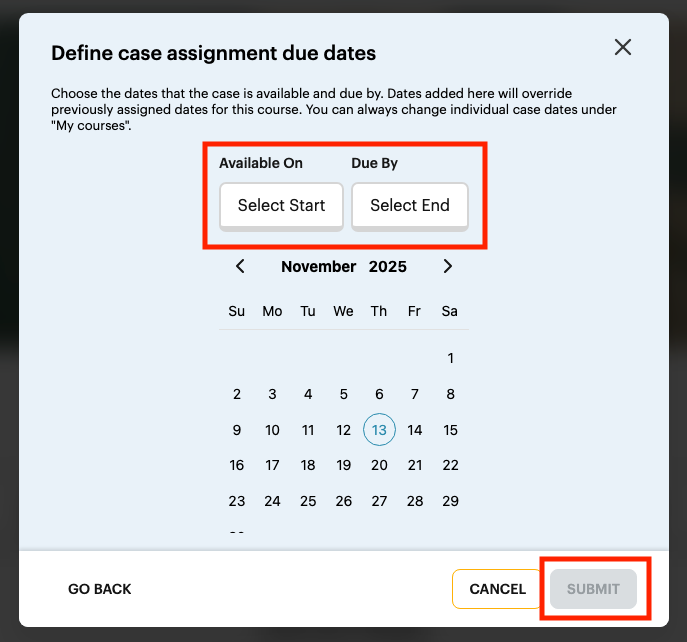
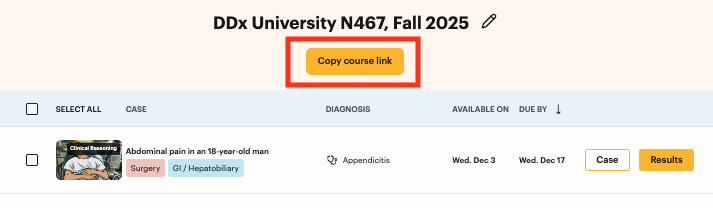
5. Once you click “submit”, the assigned case with the given available/due dates will appear when you open your course. Click "copy course link" to share this course link with your students.
.png)
Student Experience
- Students click the course link you shared.
- They will be prompted to create an account (if they don’t already have one) and should select Student during the account creation process.
- After signing up, they will automatically enter the course and see their assigned cases
.png)
Multiple Case Assignment
(Recommended if you would like to “bulk add” cases to your course and change the due dates later)
1. Navigate to the case library and select “Assign Cases” in the upper right corner.

2. Select the cases you want to assign and then click “Assign (x amount) of cases."
3. Choose the open and close dates for the cases. Click “submit” to add these cases to your course.
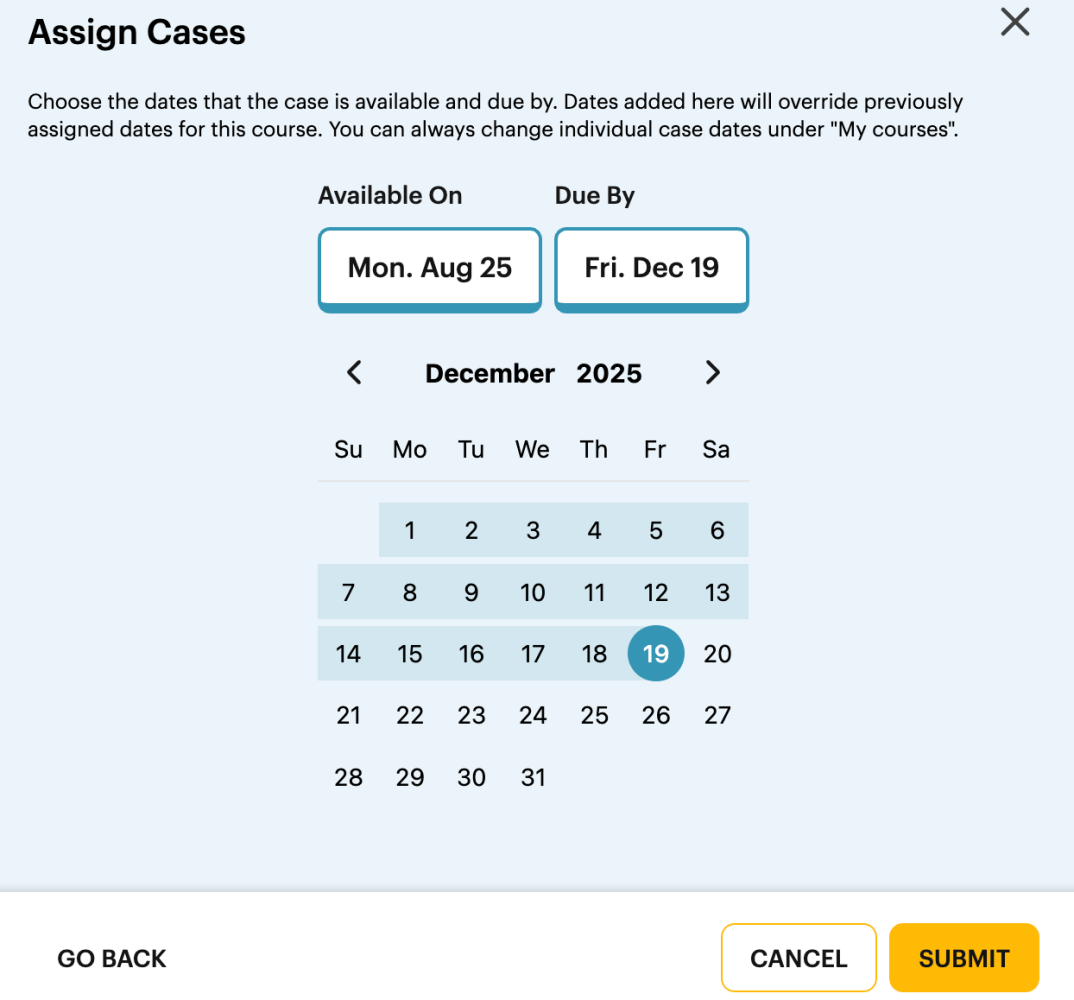
4. Changing Due Dates for Cases Added to Course.
5. Navigate to your course.
6. Click on the case you would like to adjust the open/close dates for and click “Change Dates.”
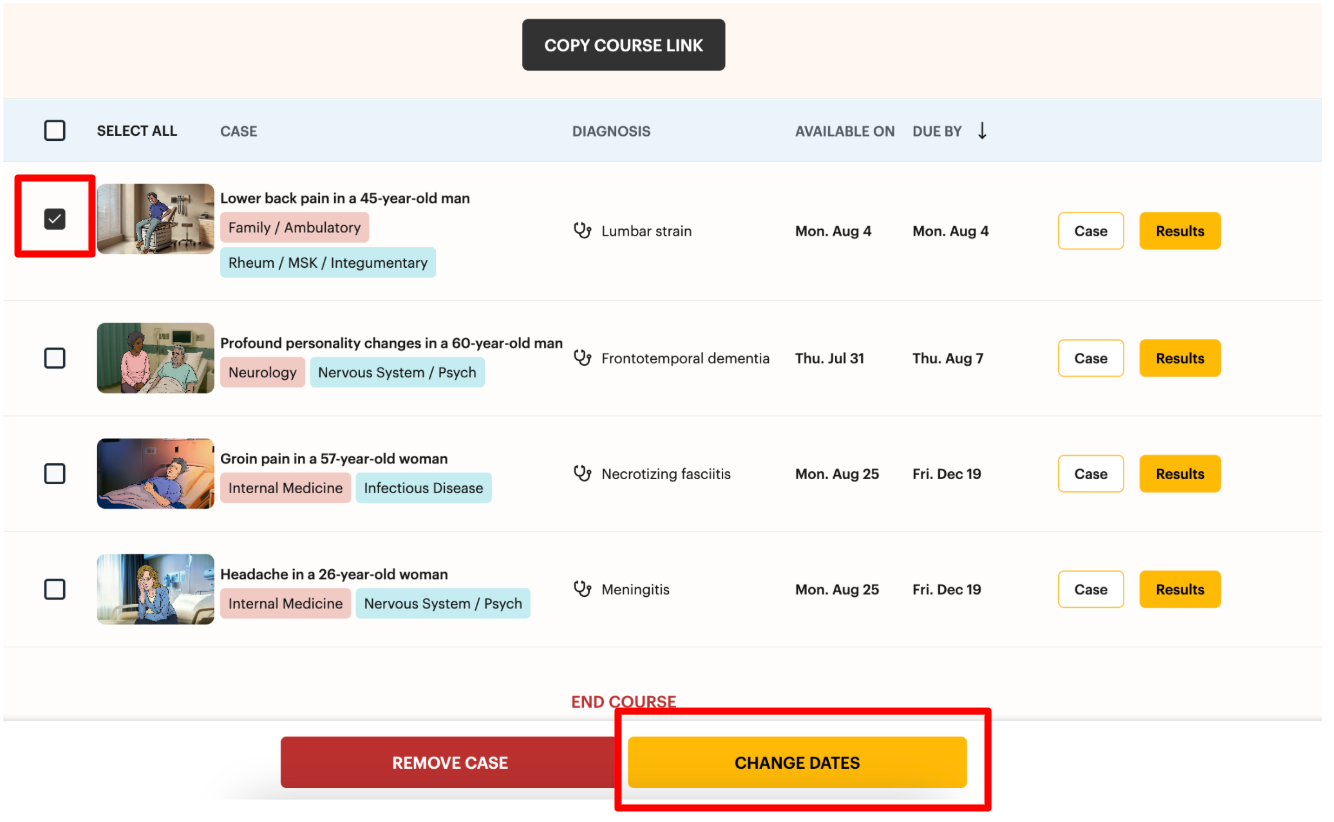
7. Adjust open and close dates → click submit!